 Domain RegistrationFind and register the perfect domain for your website.
 .COM DomainChoose a widely recognized domain to build global credibility.
 Domain TransferSeamless domain transfers with zero downtime and complete control.
 All TLDsFind and register your perfect domain. Choose from local and global extensions.
 SSL CertificatesKeep your website safe with reliable SSL Certificates that protect customer data and build trust.
 whoisCheck domain ownership details, expiration dates, and registrar information.
 US DomainRegister a .US domain and build trust in the USA.
 Web HostingEverything your website needs to run smoothly
 WordPress HostingWordPress hosting that just works
 Windows HostingReliable hosting for Windows environments
 Reseller HostingTurn hosting into your business
 Email HostingEmail that looks professional and works anywhere
 cPanel HostingFull control of your hosting with cPanel
 Affiliate ProgramJoin as a partner and earn commissions on every referral you send our way.
 Vps HostingScalable virtual servers that expand as you need.
 Dedicated ServersGet complete access and full control over your dedicated physical server.
 Managed vpsNot tech-savvy? We will take care of everything with our fully managed VPS hosting for you.
 AI Website BuilderCreate stunning websites in seconds with AI.
 Online ShopSet up a professional online store. No coding required.
 Web design serviceGet a tailored website designed to match your brand and support your goals.
 BlogFind helpful guides on web hosting, online selling, digital marketing, and more.
 Contact USYou can reach us anytime, day or night, through chat or email.
 SupportBrowse helpful guides and answers for all of our services.
Ever noticed that little padlock icon next to a website address in your browser? That’s your first clue you’re on a secure site.
But here could be the real question that keeps you awake at night as a website owner: “Is my website actually secure?”
If you’re worried about this, you’ve come to the right place.
See, right now, thousands of business owners are dealing with:
- Customers abandoning their shopping carts because of scary security warnings
- Google quietly pushing websites down in search results
- The nightmare scenario of customer data falling into the wrong hands
- That embarrassing “Not Secure” label that makes a professional website look sketchy
Here’s what we’re going to cover today:
- What is SSL? (and no, you won’t need a computer science degree to understand it)
- Why every single website needs it
- How to get SSL for your site
- How to spot secure websites
- Real costs and options from free to premium certificates
And here’s something that should grab your attention: over 80% of all websites now use HTTPS. If you’re in that other 20%, you’re standing out for all the wrong reasons.
Ready to demystify SSL and finally secure your website?
Let’s jump right in.
What Is SSL? The Super Simple Answer
Think of SSL like the difference between shouting your credit card number across a crowded restaurant versus whispering it directly into someone’s ear inside a soundproof booth.
That’s basically what SSL does for your website.
SSL stands for Secure Sockets Layer, but honestly? You don’t need to memorize that.
What you do need to know is this: SSL creates a secret code between your web browser and the website you’re visiting. Nobody else can crack that code.
Get this.
Sending information without SSL is like mailing a postcard. Anyone handling it can read every word.
Sending information with SSL is like sealing your message inside an envelope, then locking it in a safe, then putting that safe inside another safe. Good luck to anyone trying to peek inside.
Now, you might hear people talk about TLS (Transport Layer Security) and wonder if that’s different from SSL.
The truth?
They’re basically the same thing. TLS is just the newer, more secure version of SSL. It’s like how we still call tissues “Kleenex” even though there are other brands.
Everyone says “SSL,” but technically we’re mostly using TLS these days.
What happens when you type your credit card info on a secure website?
Your browser scrambles that information into gibberish before sending it. The website has the special key to unscramble it. Anyone trying to intercept it along the way sees nonsense.
And that padlock symbol in your address bar?
That’s your browser’s way of saying, “Don’t worry, I checked this website’s credentials, and everything’s locked down tight.”
Why SSL (And Why You Can’t Ignore It)
Let’s talk about why SSL isn’t just a “nice to have” anymore.
Google Ranking Factor
Since 2014, Google has openly said that HTTPS is a ranking signal. Translation: websites with SSL get a boost in search results.
But it gets better…or worse, depending on whether you have SSL.
Starting in 2018, Google Chrome began slapping a “Not Secure” warning on every website without HTTPS. Imagine potential customers seeing that before they even read your content.
Chrome isn’t subtle about it either. The warning sits right there in the address bar where everyone can see it.
According to Mozilla’s data, over 95% of Firefox page loads now use HTTPS. That means the web has made its choice, and that choice is security.
Customer Trust
Truth hurts, right? Too late. Here is one.
People judge your website in less than a second. When they see “Not Secure” next to your URL, their brain screams “DANGER!” even if you’re just running a harmless blog about gardening.
Studies on consumer behavior show that security warnings kill conversions faster than almost anything else. You could have the best product, the most compelling copy, and unbeatable prices, but that little warning will send visitors running.
Professional credibility? Gone in an instant.
That “Not Secure” label makes you look like you don’t care about your visitors. Like you’re stuck in 2010, or worse, like you’re actively trying to steal information.
Data Protection
Without SSL, every piece of information your visitors send you travels across the internet in plain text. That means readable, steal-able, exploit-able plain text.
Their names, email addresses, passwords, and credit card numbers, all of it exposed.
The consequences aren’t theoretical.
- Unsecured websites get hacked.
- Customer data gets stolen.
- Businesses face lawsuits.
- Trust evaporates overnight.
SSL protects contact forms, login pages, payment processing, newsletter signups, and every other interaction on your site.
Legal Compliance
If you’re collecting any data from European visitors, GDPR requires you to protect that data. SSL is a baseline requirement.
Planning to process payments? PCI DSS compliance mandates that credit card information must be transmitted over secure connections.
No SSL means no legal payment processing. It’s that simple.
How SSL Works (In Simple Terms)
Okay, this is where most explanations lose people with technical jargon. We’re not doing that.
Here’s how SSL works.
When you visit a website with HTTPS, something called a “handshake” happens. (No, not a literal handshake, though that would be adorable.)
Here’s the step-by-step:
Step 1: Your browser reaches out to the website and says, “Hey, I want a secure connection.”
Step 2: The website responds by sending over its SSL certificate. Think of this certificate like a driver’s license; it proves the website is who it claims to be.
Step 3: Your browser checks that certificate against a list of trusted authorities. It’s making sure the ID isn’t fake.
Step 4: Once everything checks out, your browser and the website agree on a secret code that only they know. This entire process takes milliseconds.
Now here’s the clever part:
SSL uses something called public and private keys. Imagine you have a special lock that everyone can see and use to lock a box (that’s the public key). But only you have the one key that can unlock it (that’s the private key).
Your browser uses the website’s public key to lock up information, and only that website’s private key can unlock it.
This is why hackers can’t read encrypted data even if they intercept it.
Without the private key, that data looks like random garbage. They’d have better luck reading alphabet soup.
Types of SSL Certificates Explained
Not all SSL certificates are created equal. Let’s break down what’s available and what actually makes sense for your website.
A. Domain Validation (DV) SSL
This is the basic, no-frills SSL certificate.
The certificate authority checks exactly one thing: that you control the domain name. That’s it.
No deep background checks, no verification of your business legitimacy, and no proof that you own the website.
DV SSL is perfect for personal blogs, small business websites, portfolios, and any site that isn’t processing payments.
The approval process takes minutes, literally.
You verify ownership through email or by adding a special file to your website, and boom, you’re certified.
Costs range from free (Let’s Encrypt) to around $50 per year. These certificates don’t verify your identity beyond domain ownership so that they won’t show your company name in the certificate details.
B. Organization Validation (OV) SSL
Now we’re stepping up.
OV certificates require the certificate authority to verify that your business actually exists and is legitimate. They’ll check business registration documents, make phone calls, and confirm you’re a real organization before issuing the certificate.
These SSL certificates are perfect for established businesses, e-commerce sites, and any organization that wants to display legitimacy.
The trust level is higher because visitors can click on the padlock and see your verified company information.
The process takes 3-5 days, and you’re looking at $50-$300 per year, depending on the provider.
C. Extended Validation (EV) SSL
This is the Fort Knox of SSL certificates. The certificate authority puts you through the wringer. Sorry for the jargon. I mean extensive background checks, legal verification, physical address confirmation, and more.
Years ago, EV certificates would turn your address bar green in browsers, making your security status impossible to miss.
The certificate is best for banks, major e-commerce platforms, enterprises handling sensitive data, and anyone who needs to broadcast maximum trustworthiness.
Why does it cost more?
Because the verification process is intense and time-consuming, you’re paying for the most thorough vetting possible. Prices typically run $150-$600+ per year.
Is it worth it in 2024? That’s debatable.
Modern browsers have downplayed the visual indicators for EV certificates, so the green bar isn’t the flex it used to be. For most businesses, OV is plenty.
D. Wildcard SSL
Here’s where things get interesting.
A wildcard certificate covers your main domain plus unlimited subdomains. So one certificate secures example.com, blog.example.com, shop.example.com, mail.example.com, and any other subdomain you dream up.
When you need it.
If you’re running multiple subdomains or plan to in the future, wildcard certificates save you from buying and managing separate certificates for each one. Prices typically start around $80 per year and go up from there.
E. Multi-Domain SSL
One certificate, multiple completely different domains. If you operate several websites and want to manage them all under one certificate, this is your answer. Perfect for agencies managing client sites or businesses with multiple brand domains.
Pricing varies widely based on how many domains you need to cover.
How to Tell If a Website Has SSL
You don’t need to be a security expert to spot a secure website.
Here’s what to look for.
1.1 The Padlock Icon
Look at the address bar at the top of your browser. See a little padlock icon? That’s your signal. Click on it, and you’ll get more information about the website’s security certificate.
No padlock? Red flag.
1.2 HTTPS vs HTTP in the URL
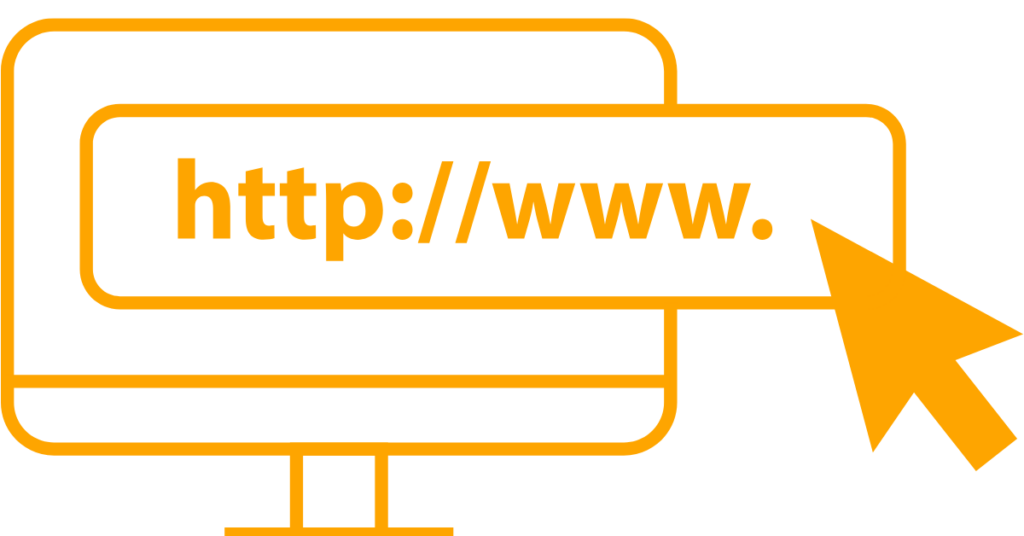
The address should start with “https://”, not just “http://”. That “s” stands for “secure,” and it’s your second confirmation that the site is using SSL.
If you see “http://” without the “s,” you’re on an unsecured site.
1.4 Viewing Certificate Details
Curious minds can click that padlock icon and select something like “Certificate” or “Connection is secure” (the wording varies by browser). You’ll see who issued the certificate, when it expires, and what domain names it covers.
Legitimate certificates come from recognized certificate authorities.
1.5 Warning Signs
Your browser will warn you about fake or expired certificates with big, scary messages. These warnings have phrases like “Your connection is not private” or “This site can’t provide a secure connection.” When you see these, trust your browser and leave.
Modern browsers are aggressive about security warnings. They’ve gotten better at protecting you from sketchy websites.
On mobile devices, the security indicators work the same way.
Look for the padlock in the address bar. The layout might look different on your phone, but the signals are identical.
Do You Need SSL? (Short Answer: Yes)
Here’s the deal: every website needs SSL in 2026. Period. Full stop. No exceptions.
“But I don’t sell anything!” Doesn’t matter.
“I’m just running a personal blog!” Still need it.
“My site barely gets any traffic!” That’s not an excuse.
Here’s why.
If you have a contact form, you’re collecting data.
You have a login page? You’re collecting credentials.
If you have an email newsletter signup, you’re collecting personal information.
All of that needs to be protected.
Let’s talk cost versus benefit.
Free SSL certificates exist and work perfectly well. The installation process on most modern hosting platforms takes one click.
The security benefits, SEO boost, and trust factor you gain are massive. The cost of not having SSL, lost visitors, lower search rankings, and security vulnerabilities is way higher than the minimal effort required to install it.
Browser warnings are conversion killers.
People see “Not Secure” and bounce. They don’t stick around to see if you’re actually dangerous. They just leave.
Can you really afford to lose visitors over something so easily fixable?
Where SSL Certificates Come From
SSL certificates don’t just appear out of thin air. They come from organizations called Certificate Authorities, or CAs for short.
What is a Certificate Authority?
Think of a CA as the DMV of the internet, except hopefully more efficient. They’re trusted third parties that verify identities and issue SSL certificates.
When your browser sees an SSL certificate, it checks whether a trusted CA issued it. If the certificate comes from a CA that your browser recognizes and trusts, the padlock appears. If not, you get scary warnings.
CAs verify that you control the domain you’re requesting a certificate for. Depending on the type of certificate, they also verify your business exists, confirm your legal status, and check your physical address.
Trusted CA Examples
Some of the big names include Let’s Encrypt, DigiCert, Sectigo, GlobalSign, and GoDaddy. These organizations have proven themselves trustworthy over years of operation. Your browser maintains a list of trusted CAs, and certificates from these authorities automatically work without warnings.
Why Browser Trust Is Key
If you generate your own SSL certificate (called a self-signed certificate), your browser won’t trust it because it doesn’t come from a recognized CA. Visitors will see error messages.
This is why you should avoid self-signed certificates for public websites. They defeat the entire purpose by triggering security warnings.
Certificate Expiration
SSL certificates don’t last forever. The current standard is one-year certificates, down from the multi-year certificates that used to be common.
Why shorter lifespans? Security.
If a certificate gets compromised, a shorter lifespan limits the damage. Most certificates need renewal annually, and many providers offer automatic renewal to prevent your site from suddenly becoming insecure when you forget to renew.
How to Get SSL for Your Website
Getting SSL isn’t nearly as complicated as it sounds. You’ve got options ranging from completely free to premium paid certificates.
1) Free SSL Options
Let’s start with Let’s Encrypt, which might be the best thing that’s happened to web security in the last decade. It’s a free, automated certificate authority that has issued over a billion certificates. The certificates are domain validated, which means they’re perfect for most websites.
How it works.
Let’s Encrypt uses automated systems to verify you control your domain and issue certificates.
The entire process is free and can be automated to renew certificates before they expire.
The main limitation? These are DV certificates only, so they don’t verify your business identity. For most websites, that’s perfectly fine.
Many hosting providers have integrated Let’s Encrypt directly into their control panels, making it literally a one-click installation.
2) Paid SSL Certificates
When should you pay for SSL? If you need organization validation or extended validation, if you want warranty coverage, or if you want premium support.
Paid certificates also often come with trust seals you can display on your website.
Price ranges vary wildly.
Basic DV certificates start around $5-15 per year.
OV certificates run $30-300.
EV certificates can cost $150-600 or more annually.
You can buy certificates from domain registrars, dedicated SSL providers, or directly through your web hosting company.
3) SSL Through Your Web Host
Here’s the easiest option.
Most web hosts now include free SSL with hosting plans. Companies like Truehost and countless others have partnered with Let’s Encrypt or provide their own free SSL certificates.
Activating it usually involves logging into your hosting control panel and clicking one button. Seriously, it’s that simple.
The host handles installation, configuration, and often automatic renewal. You flip the switch.
Popular hosts offering free SSL include basically everyone at this point. If your host doesn’t provide free SSL in 2026, it might be time to switch hosts.
Installing SSL Yourself
If you’re managing your own server or your host doesn’t provide easy SSL installation, you’ll need to do it manually.
The basic steps involve generating a Certificate Signing Request (CSR), submitting it to a CA, validating your domain, receiving the certificate files, and installing them on your web server.
This process gets technical quickly.
You’re editing server configurations and dealing with command-line interfaces. If this sounds intimidating, that’s your cue to either use your host’s built-in SSL or hire someone who does this for a living.
Setting Up SSL: The Process
Let’s walk through the full setup process so you know what to expect.
Step 1: Purchase or Obtain Certificate
Decide whether you’re going free or paid, then either activate free SSL through your host or purchase a certificate from a provider.
Step 2: Generate CSR
A Certificate Signing Request contains information about your website and organization. Your hosting control panel or server can generate this for you. It creates both a CSR and a private key. Keep that private key safe.
Step 3: Validation Process
The CA needs to verify you control the domain. This usually involves clicking a link in an email, uploading a specific file to your website, or adding a DNS record. For OV and EV certificates, expect additional business verification steps.
Step 4: Installation on Server
Once verified, you’ll receive certificate files. These get installed on your web server through your hosting control panel or by uploading them to specific directories on your server.
Step 5: Update Website to Use HTTPS
Your site can now load over HTTPS, but you need to tell it to actually use HTTPS instead of HTTP.
Step 6: Redirect HTTP to HTTPS
Set up 301 redirects so anyone visiting the old HTTP version automatically gets sent to the secure HTTPS version. This is crucial for maintaining SEO value and ensuring all visitors get the secure version.
Step 7: Update Internal Links
Go through your website and change any hardcoded HTTP links to HTTPS. This includes images, scripts, stylesheets, and internal page links.
Step 8: Test Everything
Visit your website, click around, check that the padlock appears, and verify that everything loads correctly over HTTPS.
Common Setup Issues
Mixed content warnings happen when your HTTPS site loads some resources over HTTP. Expired certificates cause “connection not private” errors.
Certificate name mismatches occur when the certificate doesn’t match your domain name. Most issues are fixable with some troubleshooting or a quick message to your hosting support team.
After Installing SSL: Important Next Steps
You’re not quite done yet. Here’s what needs to happen after SSL is installed:
Force HTTPS Across Your Entire Site
Make sure every single page loads over HTTPS, not just your homepage. This usually involves adding code to your .htaccess file or adjusting server settings.
Update Google Search Console
Add the HTTPS version of your site as a new property in Search Console. Google treats HTTP and HTTPS as different sites, so you’ll want to verify and monitor the secure version.
Fix Mixed Content Warnings
Your browser console will tell you if any resources (images, scripts, fonts) are still loading over HTTP. Update these to HTTPS or use relative URLs.
Update CDN Settings
If you’re using a content delivery network, configure it to serve content over HTTPS.
Check Third-Party Integrations
Payment processors, analytics tools, embedded widgets. Make sure they all support HTTPS and are configured correctly.
Update Hardcoded Links
Search your database and files for any absolute URLs that still reference HTTP and update them to HTTPS.
Set Up Automatic Renewal Reminders
Even if you have auto-renewal enabled, set calendar reminders 30 days before expiration as a backup. Expired certificates take your site offline with scary warnings.
Monitor Certificate Expiration
Use free monitoring tools that will email you before your certificate expires. Don’t assume auto-renewal will work. Check it.
SSL and Website Performance
Let’s address the elephant in the room: Does SSL slow down your website?
The truth: The performance impact of SSL in 2026 is minimal to nonexistent.
Here’s why that old concern doesn’t hold water anymore.
Modern browsers and servers handle encryption incredibly efficiently. The encryption and decryption processes that used to add noticeable overhead now happen in milliseconds. You won’t see any meaningful slowdown.
Here’s a plot twist: HTTPS sites often load faster than HTTP sites. Why? Because the HTTP/2 protocol, which brings significant speed improvements, requires HTTPS. You can’t use HTTP/2 without SSL.
By adding SSL, you’re actually unlocking performance benefits.
The encryption process uses a tiny amount of CPU resources, but we’re talking microseconds of processing time. Your visitors won’t notice any difference.
The benefits, security, trust, and SEO improvements massively outweigh the theoretical performance cost that barely exists.
Common SSL Errors and How to Fix Them
Even with SSL properly installed, you might encounter errors. Here’s what the most common ones mean and how to fix them.
a. “Your Connection Is Not Private.”
This scary-sounding error usually means your certificate has expired, doesn’t match the domain name, or isn’t trusted by the browser. If you’re a website visitor, don’t proceed. The warning is protecting you.
If you’re the website owner, check your certificate’s expiration date and verify it was issued for your exact domain name.
Contact your hosting provider if you’re stuck.
b. Mixed Content Warnings
You’ve loaded your page over HTTPS, but some elements (images, scripts, stylesheets) are still coming from HTTP URLs. Browsers block this mixed content because it defeats the purpose of encryption.
Finding the culprits involves checking your browser’s console for errors and searching your code for “http://” references.
Replace them with “https://” or use relative URLs like “//example.com/image.jpg” instead.
c. Certificate Expired
Certificates don’t last forever.
When yours expires, visitors see warnings and can’t access your site.
Why do they expire? Security. Shorter lifespans limit the damage if a certificate gets compromised.
Fix it by renewing your certificate through your CA or hosting provider. Set up automatic renewal so this never happens again.
D. Certificate Name Mismatch
Your certificate was issued for “www.example.com,” but your visitor is accessing “example.com“, or vice versa. The names don’t match, and browsers freak out.
Most SSL certificates can cover both the www and non-www versions. Make sure yours does, or set up redirects so everyone lands on the version your certificate covers.
E. Invalid Certificate Chain
The certificate authority’s intermediate certificates aren’t properly installed. Think of it like a broken chain of trust. Your browser can’t verify the path from your certificate back to a trusted root CA.
This is more technical and usually requires reinstalling the certificate with all the proper intermediate certificates included. Your hosting support team can help with this one.
SSL Certificate Costs: What to Expect
Let’s talk money. What’s SSL actually going to cost you?
a) Free Options
Let’s Encrypt provides completely free domain validated SSL certificates: no catch, no hidden fees, just free security. Most major hosting providers, such as Truehost, have integrated Let’s Encrypt and offer free SSL with hosting plans.
You’re looking at exactly $0.
b) Basic SSL Certificates
For simple SSL needs, prices are surprisingly affordable. Here is Truehost’s SSL certificate pricing.
- AskSSL Starter: Domain validated with $10,000 warranty protection, covers 1 domain, issued in 3 minutes. Starting at $4.99/year.
- RapidSSL Certificate: Domain validated, secures one domain, issued in 3 minutes. From $11.88/year.
- Sectigo PositiveSSL: Domain validated with $10,000 warranty, covers 1 domain, 3-minute issuance. Starting at $10.00/year.
- Sectigo Essential SSL: Domain validated with $10,000 warranty, covers your main domain plus subdomains. Starting at $12.80/year.
c) Organization Validated
- Sectigo InstantSSL: Organization validated for 1 domain, takes 3-5 days for issuance, from $36.80/year.
d) Wildcard Certificates
- AskSSL Wildcard SSL: Domain validated with $10,000 warranty, covers unlimited subdomains, and 3-5 days issuance. Starting from $79.99/year.
Want enterprise-grade SSL?
Wildcard SSLs and Multi-Domain SSLs can secure subdomains and entire fleets of domains, with prices scaling up based on your needs.
Why Prices Vary
Several factors affect SSL certificate cost.
- The validation level (DV is cheapest, EV is most expensive)
- The number of domains covered
- Warranty amounts
- Brand reputation
- Included support.
Extended validation costs more because it requires extensive manual verification.
Wildcard and multi-domain certificates cost more because they cover multiple sites.
Are Expensive Certificates Better?
In terms of encryption strength? No.
A free Let’s Encrypt certificate encrypts data just as securely as a $500 EV certificate. The difference is in validation level, warranty coverage, support quality, and trust indicators.
For most websites, free or basic paid certificates are perfectly sufficient.
Hidden Costs to Watch For
Watch out for automatic renewal at higher prices, upsells for “premium” features you don’t need, installation fees some providers charge, and multi-year commitments that lock you in.
Read the fine print before purchasing.
SSL Myths Debunked
Let’s clear up some common misconceptions about SSL.
Myth: “SSL is only for e-commerce sites.”
False.
Every website benefits from SSL, blogs, portfolios, informational sites, everything. If you have any forms, logins, or user interactions, you need SSL.
Even if you don’t, Google’s ranking boost and the elimination of “Not Secure” warnings make SSL worthwhile for everyone.
Myth: “Free SSL isn’t secure.”
Completely false.
Let’s Encrypt provides the same level of encryption as paid certificates. The encryption strength is identical. The only difference is the validation level and support options.
A free DV certificate protects data just as well as a paid DV certificate.
Myth: “SSL will slow down my website.”
Outdated information.
Modern encryption is high-speed, and HTTP/2 (which requires HTTPS) actually speeds up websites. Any performance impact is negligible and overshadowed by the performance improvements HTTPS enables.
Myth: “Small sites don’t need SSL.”
Wrong. Size doesn’t matter.
Chrome shows “Not Secure” warnings on all HTTP sites, regardless of size. Google’s ranking algorithm considers HTTPS for all sites. Visitors expect security everywhere.
Small sites need SSL just as much as large ones.
Myth: “SSL is too technical/expensive.”
Not anymore. Free SSL exists.
Most hosts offer one-click installation. The process has become dramatically simpler over the last few years. If you can log into your hosting control panel, you can activate SSL.
Myth: “One certificate covers everything.”
Not quite. A standard single-domain certificate covers one domain.
You need a wildcard certificate for subdomains or a multi-domain certificate for multiple different domains. Make sure you get the right type for your needs.
SSL for E-commerce: Special Considerations
Running an online store? SSL is just the beginning of your security requirements.
PCI Compliance Requirements
If you process, store, or transmit credit card information, PCI DSS (Payment Card Industry Data Security Standard) mandates SSL/TLS encryption. Non-compliance can result in fines and the loss of your ability to accept card payments. SSL is a baseline requirement. You’ll also need other security measures.
Payment Gateway SSL Requirements
Payment processors like Stripe, PayPal, and Square require your checkout pages to use HTTPS. They won’t process transactions on unsecured pages. Most modern payment gateways handle the actual card processing on their secure servers, but your checkout page still needs SSL.
Customer Checkout Security
Your checkout process should be obviously secure. Display trust badges, keep your SSL certificate current, and make sure the padlock is visible during checkout. Customers abandon carts when they feel unsafe.
Trust Seals and Badges
Some SSL providers include trust seals you can display on your website. These badges signal to customers that you take security seriously. They can increase conversion rates by reducing anxiety at checkout.
Best Practices for Online Stores
Use at least organization validation SSL so customers can verify your business identity. Keep all software updated. Use secure payment gateways rather than handling card data directly. Monitor for suspicious activity. Consider adding additional security layers, like web application firewalls.
Mobile and SSL
Now, mobile browsing has overtaken desktop, so mobile security matters more than ever.
Mobile browsers show the same security indicators as desktop, the padlock icon, HTTPS in the address bar, and warning screens for insecure sites. The interface might look different on a small screen, but the functionality is identical.
Mobile-specific considerations include the fact that mobile users often connect through public WiFi, making encryption even more critical. Mobile browsers are aggressive about showing security warnings. Slow mobile connections make SSL performance even more important. Thankfully, modern SSL has minimal performance impact.
For mobile apps that connect to your website’s backend, SSL pinning adds an extra security layer by ensuring the app only accepts certificates from your specific domain. This prevents man-in-the-middle attacks.
Your responsive design should ensure all resources load over HTTPS regardless of device. Test your site on actual mobile devices to confirm everything works securely.
SSL Renewal: Don’t Let It Expire
Certificate expiration is one of the most common SSL problems, and one of the most preventable.
Why Certificates Expire
Security. Shorter certificate lifespans limit the window of opportunity if a certificate gets compromised. They also ensure cryptographic standards stay current. The current industry standard is one-year certificates, reduced from the multi-year certificates that were common until 2020.
Setting Up Renewal Reminders
Your calendar should have reminders 30 and 7 days before expiration. Email reminders from your CA should go to an address you actually check. Free monitoring services will alert you about upcoming expirations.
Automatic Renewal Options
Many certificate authorities and hosting providers offer automatic renewal. Let’s Encrypt has built its entire system around automation. Certificates renew every 90 days automatically if configured properly. Even with auto-renewal, monitor it to ensure it’s actually working.
What Happens When SSL Expires
Your website becomes immediately inaccessible to visitors. Browsers display full-page warnings that look terrifying. Most visitors will leave rather than click through the warnings. Your site remains down until you renew and reinstall the certificate.
Grace Periods
There usually aren’t any. When your certificate expires, it expires. Some CAs might give you a few days to renew at the same price, but your site will be throwing errors the entire time.
Emergency Renewal Process
If your certificate expires, renew it immediately through your CA or hosting provider. Installation can often be completed within hours if you act fast. Having your hosting provider’s support contact info handy can save you in emergencies.
The Future of SSL/TLS
Web security keeps evolving. Here’s what’s on the horizon:
Shorter Certificate Lifespans
The trend toward shorter validity periods continues. Apple has proposed reducing maximum certificate lifespans to 45 days, though this hasn’t been implemented industry-wide yet. Shorter lifespans increase security but require better automation.
Quantum Computing Threats
Current encryption methods could theoretically be broken by quantum computers. The timeline is uncertain, but cryptographers are already developing post-quantum cryptography algorithms that would resist quantum attacks.
TLS 1.3 Improvements
The latest version of TLS offers faster handshakes, better security, and improved performance. More sites are adopting TLS 1.3, and older versions are being phased out.
Emerging Security Standards
Certificate Transparency logs make it harder for attackers to use fraudulent certificates. DNS-based Authentication of Named Entities (DANE) adds another verification layer. The Automated Certificate Management Environment (ACME) protocol makes certificate management easier.
What’s Changing in Web Security
Browsers are getting stricter about what they’ll accept. Legacy encryption algorithms are being deprecated. The bar for what counts as “secure” keeps rising. The good news? These changes make the web safer for everyone.
Wrapping This Up
SSL is non-negotiable in the modern web. It’s not an optional extra or a luxury feature. It’s fundamental website infrastructure.
The good news?
It’s easier and cheaper than ever to secure your website. Free options work perfectly fine for most sites. Most web hosts make installation a one-click process.
The security benefits protect you and your visitors. The trust factor helps conversions. The SEO boost helps your rankings. Every single reason points toward getting SSL installed today.
Ready to secure your website? Head over to Truehost and get yourself an SSL certificate.
What is SSL FAQs
SSL is the older version. TLS is the newer, safer protocol. Today, “SSL certificate” you buy is TLS, but the old name stuck.
It’s the common term, even though SSL itself is outdated.
Yes, if you know how to access your hosting panel and manage DNS. If you’re unsure, it’s safer to let your host or a professional handle it.
No. SSL encrypts data between the user and your server. It does not protect weak passwords, outdated plugins, or malware. You still need good security practices.
Yes, but lightly. Google gives a slight boost to HTTPS sites. It also protects user data, which builds trust.
Yes. But earlier is better. The switch needs proper redirects and updates to avoid broken links.
It’s a certificate you create yourself, not issued by a trusted authority. Browsers flag it as unsafe. It’s used mainly for testing, not live sites.
Yes. You can use a wildcard certificate to cover all subdomains at once.
Breaking the encryption is extremely hard. Real threats come from stolen keys, hacked servers, or compromised certificate authorities, not the math behind SSL.
It’s a security method used primarily on mobile apps. It locks the app to a specific certificate to block fake certificates.
Click the padlock in your browser to view the certificate details. You can also check using free online SSL tools.